How to Stamp a PDF with APPROVED or DRAFT
⏱ Takes less than 1 minute
Need to mark a PDF as APPROVED, DRAFT, or CONFIDENTIAL? PDFredo's free online PDF stamp tool adds ready-made or custom stamps to any page. No account, no watermarks on the output, and your file is deleted from our EU servers after 30 minutes.
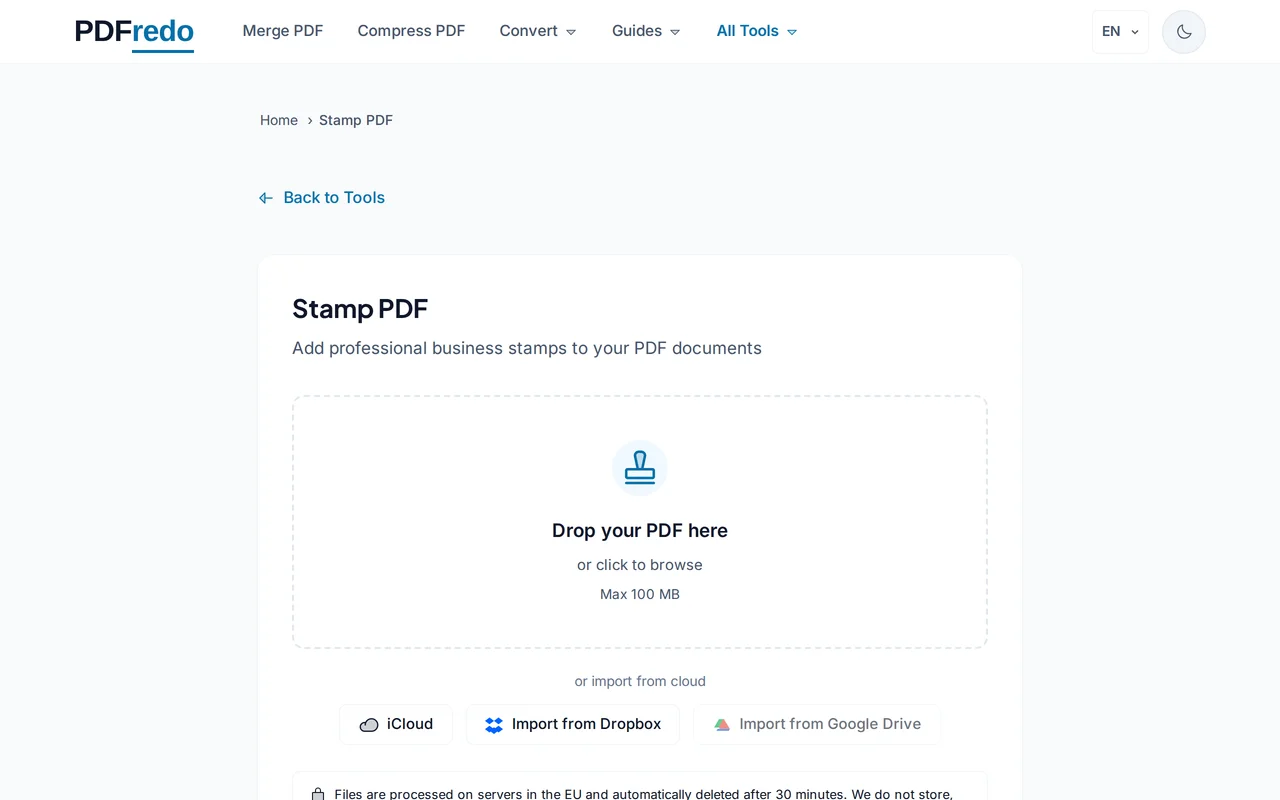
Upload your PDF
Click "Select File" or drag your PDF in. The first page loads as a live preview.
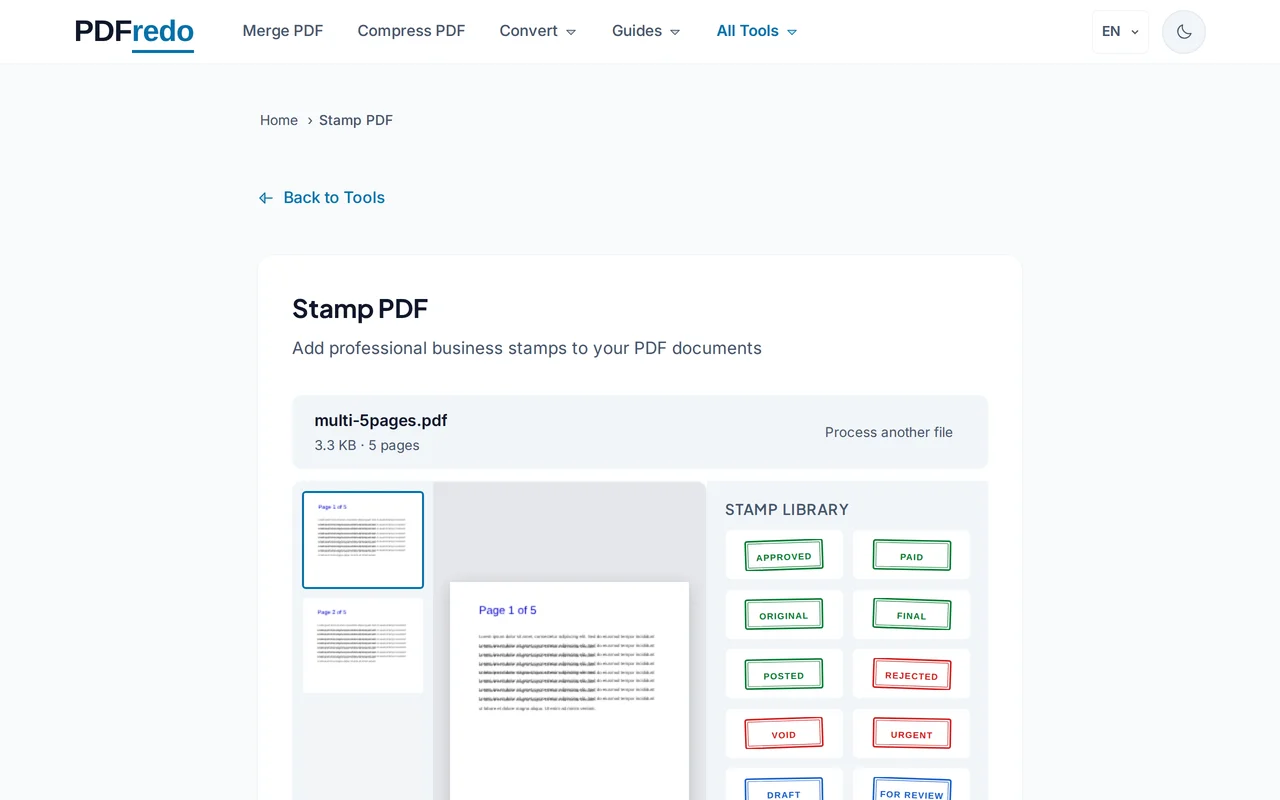
Choose and place a stamp
Pick from presets (APPROVED, DRAFT, CONFIDENTIAL, REJECTED) or type your own text. Drag the stamp to the exact spot on the page.
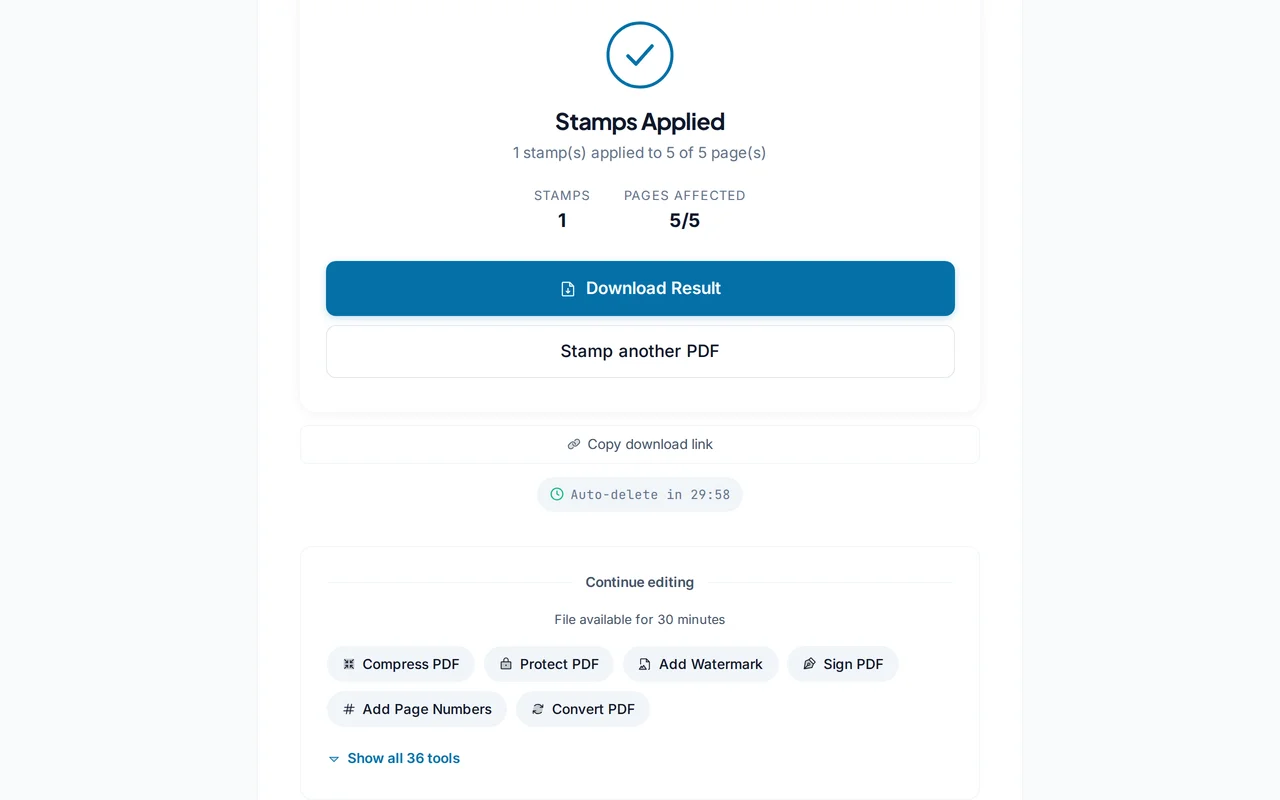
Download the stamped PDF
Click "Apply Stamp". PDFredo writes the stamp into the page on secure EU servers and offers the file for download.
Pro Tips
- Apply the same stamp to all pages at once with the "Apply to all" checkbox.
- Use a custom stamp with the date for audit trails (e.g., "APPROVED 2026-04-22").
- Combine with the Sign tool to add your signature right below the stamp.
Frequently Asked Questions
Can I create my own stamp text?
▾
Yes. Type any text, pick a color and border style, and save it as a custom stamp for reuse.
Can I stamp multiple pages at once?
▾
Yes. Select "Apply to all" or enter a page range to stamp several pages in one go.
Are stamps permanent?
▾
Yes. They are flattened into the page content on download. The original upload is untouched until it auto-deletes.
Is a stamp legally binding?
▾
A stamp is visual only. It does not carry the legal weight of an electronic signature. Use our Sign PDF tool for signatures.
Are my files private?
▾
Files are processed on EU servers (Germany) and deleted automatically after 30 minutes.
Is the stamp tool free?
▾
Yes. No registration, no subscription, no watermarks added by PDFredo.
Does it work on mobile?
▾
Yes. Any modern browser on iOS or Android.